Editor score 4.2 / 5
Insight
Clarify the Task First: Web for Discovery, Sheets for Review
When organizing Balenciaga product candidates, the most common issue isn't failing to find products—it's treating information seen on a page as a final buyable conclusion. A safer approach is to split the process into two phases: first discover candidates in the Balenciaga footwear catalog on fashion-reps, then move fields requiring ongoing comparison and review into Google Sheets.
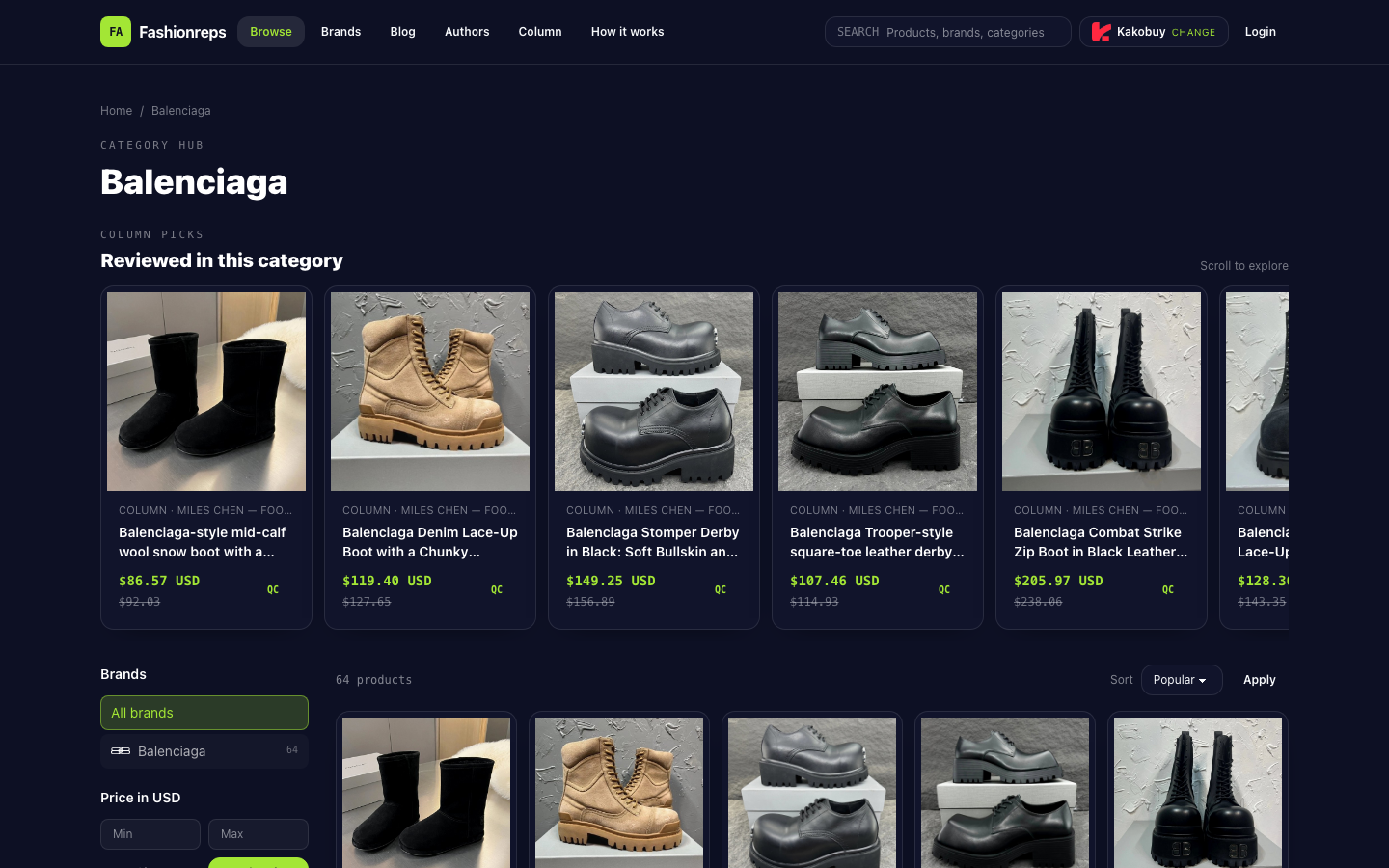
As of October 27, 2026, the catalog page displays Balenciaga categories and product filtering options. You can browse by brand, price range, and sort order, and view product titles, reference prices, and QC entry points. The page also provides a purchasing platform selection, and product buttons lead to the currently selected shopping agent. This is suitable for initial discovery, but reference prices, stock, shipping, and final purchase status should still be verified item by item on subsequent pages.

What to Record on the Web First
Don't rush to add every product to the spreadsheet in the first round. Start by using the catalog's brand filter, price range, and sorting features to narrow down, then open product pages relevant to your needs. Candidate records should at least include the following:
- Original product title: keep the style description from the page; don't alter it to a more definitive material or series name.
- Color, size, or other specs shown on the page; leave blank any fields not explicitly stated.
- Actual links to product detail page, QC page, or purchase entry.
- Reference price shown on the page, noting it's a reference price and not the final payment amount.
- Whether the page loads properly, images are visible, and the purchase entry is still valid.
- Date first viewed, and the date for next review.
Titles in the catalog help distinguish candidates. For example, the page lists mid-calf wool snow boots, Denim lace-up boots, Stomper Derby, Trooper-style square-toe derby shoes, and Steroid EVA ankle boots. Their reference prices range from $41.79 to $44.78 to $205.97 as shown on the page, but these numbers should only serve as records for that visit and cannot be used to infer stock, shipping, or final transaction price.
What Google Sheets Should Handle
When candidates exceed a few or need to be rechecked after several days, a spreadsheet is more suitable than browser tabs. It's recommended to put one candidate per row and one type of information per column. This allows filtering by price, style, status, or review date, and in collaborative settings, shows which fields are verified and which still need evidence.
| Field | Suggested Entry | Purpose |
|---|---|---|
| Candidate ID | BLC-001, BLC-002 | Avoid relying solely on long titles for identification |
| Product Title | Paste page original text | Keep a reviewable name |
| Style Category | Boots, Derby shoes, Loafers, etc. | Facilitate filtering and grouping |
| Color & Size | Fill only what the page explicitly states | Avoid treating guesses as specs |
| Reference Price | Numeric value plus USD | Save together with record date |
| Page Link | Product or detail page link | Return to original evidence |
| Link Status | Working, login required, broken, pending review | Distinguish whether further checking is possible |
| Verified Fields | Title, image, specs, price, etc. | Show evidence coverage |
| Open Questions | Stock, shipping, size advice, etc. | Prevent overlooking key limitations |
| Exclusion Reason | Duplicate, broken link, insufficient info, etc. | Explain why not selected |
| First Viewed Date | YYYY-MM-DD | Keep timeline |
| Next Review Date | YYYY-MM-DD | Manage subsequent checks |
The "Open Questions" column in the sheet is important. For instance, if a page has product title and image but doesn't have enough info to confirm actual size range, write "size to be confirmed on detail page" instead of entering a guessed value. The QC entry displayed on the page only indicates a viewing path exists; it cannot replace actual verification of images, details, and specs.
A Repeatable Filtering Process
Step 1: Set Filtering Criteria
First, write down the hard conditions for this task, e.g., footwear, black color, a specific price ceiling, or a particular sole shape. Without clear criteria, the spreadsheet easily becomes a pile of product titles rather than an actionable candidate list.
Step 2: Collect a Small Number of Candidates from the Catalog
Browse the catalog using brand filter, price range, and sorting entry. In the first round, keep only products clearly matching the criteria; don't add everything just because similar words appear in the title. For each candidate, record the original title, reference price, and catalog or detail page entry.
Step 3: Open Pages to Verify Evidence
Check images, title, specs, and link status one by one. Do not fill in information not present on the page; if a product page cannot be opened, mark status as "broken" or "pending review" rather than continuing to recommend it as buyable.
Step 4: Write Uncertainties into the Spreadsheet
List stock, shipping, final price, size fit, and material details as separate open questions. This allows subsequent reviews to target specific issues rather than repeatedly browsing from scratch.
Step 5: Set Review Dates
Product pages change and links may break. Update date and status after each review; if price or page content changes, record the reason for change, not just the date. Without new evidence, don't treat old records as current buyable conclusions.
Boundary Between Web and Spreadsheet
The value of the web side lies in discovery and viewing: the catalog provides brand entry, category browsing, filtering, sorting, product images, and related link paths. It's better for confirming what the page currently shows.
Google Sheets' value lies in organizing and tracking: it can place scattered candidates in one view, filter by status, category, price, or review date, and allow collaborators to add fields and exclusion reasons. It cannot replace product pages, nor can it verify stock, shipping, or product quality out of thin air.
Therefore, it's recommended to keep "facts seen on the web" separate from "judgments made by the team." Titles, images, reference prices, and links belong to page records; whether to keep, need further confirmation, or exclude are organizing outcomes. Mixing these two types of information in the same note most easily loses the evidence source later.
When Not to Continue Recommending a Candidate
If a product link is broken, the page cannot confirm the corresponding product, or there is only a vague title without sufficient spec evidence, it should be left in the excluded or pending review area, not placed in the final purchase list. Even if the catalog previously showed a reference price, it cannot prove current stock or purchase at that price.
After completing an organization pass, the final spreadsheet should answer three questions: where does this candidate come from, which fields have been verified, and what issues remain unresolved. Only when these three points are clearly answered do web and Google Sheets form a truly reviewable handoff process, rather than simply copying product titles.